Projects and tasks
Organized materials. Clearer work.
Choose a project for each task to keep goals, reference materials, and expected results within one work scope.
Choose a project · Describe your goal
uMouse · Smart work assistant
From a spoken idea to a finished result.
Bring voice input, writing, and everyday tasks into a natural way of working.
Mouse work assistant
Connect a USB receiver or pair a Bluetooth mouse, then use familiar buttons for more natural input.
Hold the voice button to type into the focused input field in real time, making notes and replies easier.
The project meeting is at 3 p.m. on Friday. Remember to bring the new presentation.
The project meeting is at 3 p.m. on Friday. Remember to bring the new presentation.
Hardware buttons require a compatible mouse. View its connection status in the client's mouse work assistant.
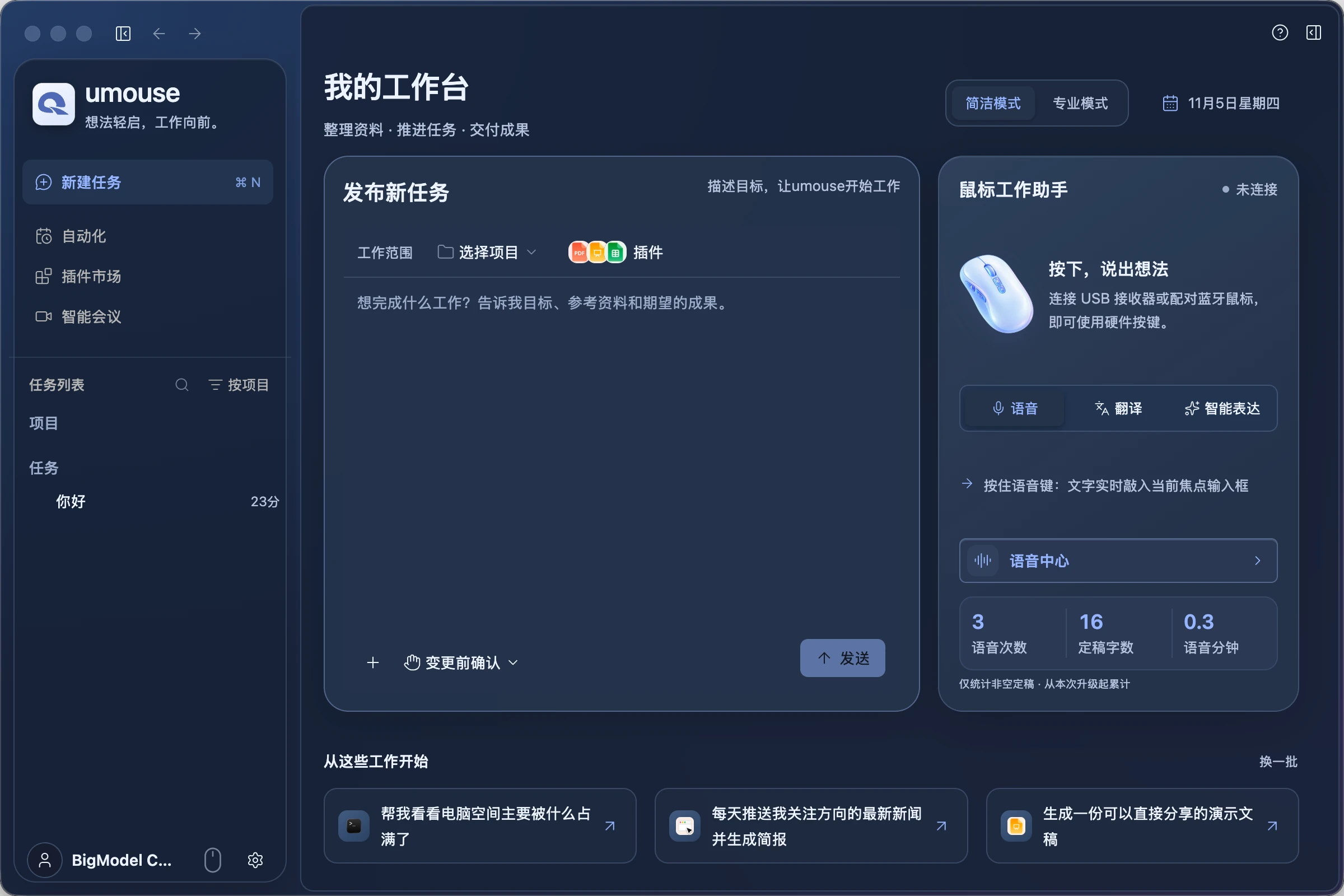
My workspace
Organize materials, move tasks forward, and deliver results, with the tools you need in one place.
Projects and tasks
Choose a project for each task to keep goals, reference materials, and expected results within one work scope.
Choose a project · Describe your goalAutomation
Organize recurring work through Automation to keep daily information and routine tasks in order.
Recurring work · Centralized managementPlugin marketplace
Choose plugins for each task to bring documents, presentations, and spreadsheets into one workflow.
Documents · Presentations · SpreadsheetsSmart meetings
Open Smart Meetings from its dedicated entry, keeping meetings and everyday work easy to find.
Meetings · Dedicated entryStart with these tasks
Help me find what is taking up the most space on my computer.
Start by understanding storage usage, then decide what to do.
Send me the latest news on my interests each day and prepare a briefing.
Define your interests to give recurring work a clear purpose.
Create a presentation that is ready to share.
Start with a topic and existing materials, then define the result you need.
These are illustrative tasks. Execution depends on the selected project, plugins, and confirmed scope of action.
Easy to use. Clear boundaries.
Start in Simple mode and switch to Professional mode when needed. You set the goal and choose the scope of work.
Simple mode
Task creation and the mouse work assistant appear side by side, keeping common input and work tools easy to find.
Professional mode
When you need a fuller workflow, organize your work around projects, plugins, and automation.